Best Streaming Software Compared (2026): OBS vs StreamElements vs Streamlabs vs XSplit
StreamerPerks earns a commission from some outbound links. How programs are checked and how the site is funded.
The wrong streaming software can wreck a stream before you go live. Dropped frames, encoding problems, mid-stream crashes, or a learning curve so steep you give up before your first follower.
By 2026 the options have matured. OBS Studio is still the open-source favorite, but StreamElements, XSplit, and Streamlabs Desktop have caught up with easier setup, built-in features, and better onboarding.
This guide compares OBS Studio, StreamElements, XSplit, and Streamlabs in detail. It covers performance benchmarks (CPU/GPU usage, quality), which tool suits beginners and which suits pros, and the less obvious stuff: hidden features, plugins, and monetization tools.
The contenders
| Software | Price | Best For | Difficulty |
|---|---|---|---|
| OBS Studio | Free (open-source) | Power users, customization lovers | Hard |
| StreamElements OBS.Live | Free | All-in-one beginners | Easy |
| Streamlabs Desktop | Free + Premium ($19/mo) | Beginners who want easy setup | Easy |
| XSplit Broadcaster | $60-$250/year | Professional production, Windows only | Medium |
| Lightstream Studio | $8-$41/month | Console streamers, no PC needed | Very Easy |
OBS Studio (Open Broadcaster Software)
OBS Studio is the default choice for serious streamers. It's free, open-source, customizable almost without limit, and backed by a huge community.
Pros
- 100% free (no ads, no paywalls, no "premium" features)
- Unlimited scenes and sources, with no artificial caps
- Thousands of community plugins at obsproject.com/forum/resources
- Low resource usage
- Runs on Windows, Mac, and Linux
- Full control over encoding settings, bitrate, and resolution
- It's what most pros use
Cons
- Steep learning curve, and nothing walks you through it
- No built-in alerts or overlays (you need third-party integrations)
- Manual updates (auto-update exists but isn't forced)
- The sheer number of settings can overwhelm beginners
Performance benchmarks (1080p 60fps stream)
- CPU usage: 10-20% (with NVENC GPU encoding on RTX 4060)
- RAM usage: 300-500MB
- Encoders: NVENC (NVIDIA), AMF (AMD), x264 (CPU)
Best OBS Studio plugins (2026)
- obs-websocket: control OBS remotely (Stream Deck, mobile apps)
- Advanced Scene Switcher: switch scenes automatically based on conditions
- Move Transition: smooth animations between scenes
- Virtual Cam: use OBS output as a webcam in Zoom or Discord
- Source Record: record specific sources (e.g., just gameplay, not the full stream)
Who should use OBS Studio?
- Experienced streamers who want full control
- Tech-savvy beginners willing to learn (there are tons of YouTube tutorials)
- Multi-platform streamers (Linux and Mac users have no better option)
- Creators on a budget, since it's free forever
StreamElements OBS.Live
StreamElements OBS.Live is a modified fork of OBS Studio with StreamElements features built in: alerts, overlays, chat, and analytics. Think of it as OBS with training wheels, and these training wheels are actually good.
Pros
- 100% free (no premium tier)
- Built-in alerts and overlays, so you don't need browser sources
- Easier onboarding than vanilla OBS
- StreamElements integrations (merch store, tipping, loyalty points)
- Same core as OBS Studio, so most OBS plugins work
- Runs on Windows and Mac
Cons
- Some OBS plugins break, so compatibility is worse than vanilla OBS
- Tied to StreamElements (no native support for Streamlabs overlays)
- A bit bloated, since more features means more complexity
Performance benchmarks (1080p 60fps stream)
- CPU usage: 12-22% (a little higher than OBS because of the built-in widgets)
- RAM usage: 400-600MB
- Encoders: same as OBS (NVENC, AMF, x264)
Who should use StreamElements OBS.Live?
- New streamers who want OBS power without the complexity
- Creators already using StreamElements for overlays and alerts
- Anyone who hates browser sources (the built-in widgets are cleaner)
Streamlabs Desktop (formerly Streamlabs OBS)
Streamlabs Desktop started as a fork of OBS and has since been heavily modified and packed with features. Picture OBS with an app store and monetization tools bolted on.
Pros
- Beginner-friendly, with an auto-setup wizard and pre-built themes
- Built-in alerts, overlays, chatbot, and merch store
- Streamlabs Prime ($19/month) adds premium overlays, themes, and apps
- Tipping integration (Streamlabs collects tips for you)
- Mobile app to stream from your phone or control your desktop stream
Cons
- Uses more resources than OBS because of all the extra features
- Less stable, with more crash reports than vanilla OBS
- The best features sit behind a paywall (premium themes, selective recording)
- Windows only (no Mac or Linux support)
- Controversial history: it was accused of copying OBS without proper credit
Performance benchmarks (1080p 60fps stream)
- CPU usage: 15-30% (noticeably higher than OBS)
- RAM usage: 600-900MB (more overhead)
- Encoders: NVENC, x264 (same options as OBS)
Who should use Streamlabs Desktop?
- Complete beginners who want everything in one app
- Streamers focused on monetization (tipping, merch, premium overlays)
- Windows users who don't care about open-source ethics
OBS Studio vs Streamlabs Desktop (direct comparison)
| Feature | OBS Studio | Streamlabs Desktop |
|---|---|---|
| Price | Free | Free + $19/mo premium |
| Resource Usage | Low | Medium-High |
| Stability | Excellent | Good (occasional crashes) |
| Customization | Unlimited | High (but paywalled) |
| Built-in Overlays/Alerts | No | Yes |
| Plugin Support | Best | Limited |
| Cross-Platform | Yes | Windows only |
| Community Trust | High | Mixed |
Verdict: pick Streamlabs if you want simplicity and can live with the bloat. Pick OBS Studio if you care more about performance and control.
XSplit Broadcaster
XSplit Broadcaster is paid, professional streaming and recording software. It's roughly the Adobe Premiere of live streaming: polished, full of features, and not free.
Pros
- Cleaner, more intuitive interface than OBS
- Built-in production tools (chroma key, transitions, picture-in-picture)
- Excellent customer support, because paid software comes with an actual help desk
- Projector mode sends output to a second monitor or projector for live events
- Source masking for advanced cropping and shapes
- Easier source management for multi-camera setups
Cons
- Not free: $60/year (Personal) or $250/year (Premium)
- Windows only (no Mac or Linux)
- Uses more resources than OBS
- Smaller plugin ecosystem, since proprietary software attracts fewer devs
Performance benchmarks (1080p 60fps stream)
- CPU usage: 12-25% (with NVENC)
- RAM usage: 500-700MB
- Encoders: NVENC, x264, Intel QuickSync
XSplit pricing (2026)
- Free tier: 720p max, XSplit watermark, limited features
- Personal ($60/year): 1080p, no watermark, basic features
- Premium ($250/year): 4K, multi-output, advanced production tools
Who should use XSplit?
- Professional streamers who earn from streaming and value support
- Event producers (IRL streams, multi-cam setups, conferences)
- Windows users who want a polished, paid alternative to OBS
Lightstream Studio
Lightstream Studio is cloud-based. The stream runs from the cloud instead of your PC, which makes it a good fit for console streamers and anyone with a weak computer.
Pros
- No PC needed: stream from PlayStation, Xbox, or Switch via the cloud
- Works on low-end PCs because encoding happens in the cloud
- Built-in overlays and alerts
- Multi-platform simultaneous streaming (Twitch, YouTube, and Facebook at once)
Cons
- Subscription only: $8-$41/month (no free tier in 2026)
- Needs fast internet, since you upload to the cloud and the cloud streams out
- Input lag (a slight delay between gameplay and what you see)
- Less control than traditional software
Who should use Lightstream?
- Console streamers (PS5, Xbox Series X)
- Laptop users with weak hardware
- Multi-platform streamers simulcasting to 3+ platforms
Nvidia ShadowPlay / AMD ReLive (instant replay recording)
These are the recording tools built into your GPU software. They aren't full streaming software, but they're worth knowing about:
- Nvidia ShadowPlay (GeForce Experience)
- AMD ReLive (AMD Software)
Pros: one-click recording and streaming, a minimal performance hit thanks to hardware encoding, and Instant Replay, which saves the last 30 seconds to 20 minutes of gameplay.
Cons: no scenes or overlays (just raw gameplay), little customization, and bare-bones streaming with no alerts or chat integration.
Best for casual streamers who don't care about production value, and for clip creators grabbing funny moments for TikTok or Twitter.
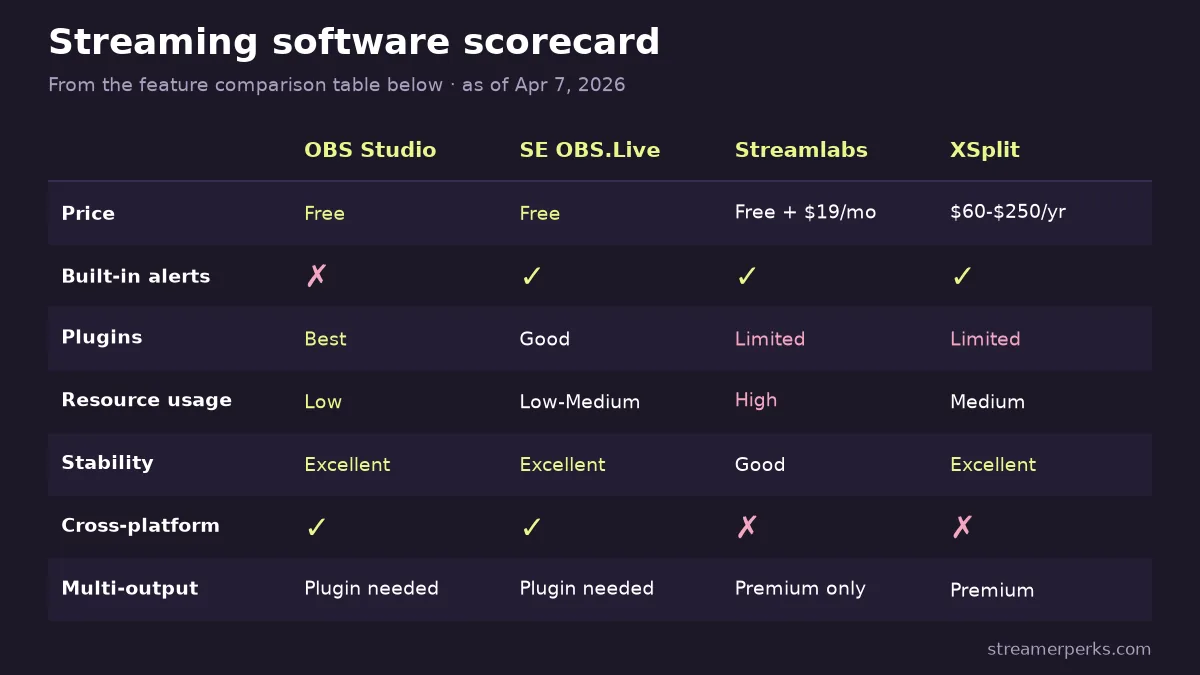
Feature comparison table
| Feature | OBS Studio | StreamElements OBS.Live | Streamlabs Desktop | XSplit |
|---|---|---|---|---|
| Price | Free | Free | Free + $19/mo | $60-$250/yr |
| Built-in Overlays/Alerts | No | Yes | Yes | Yes |
| Plugin Ecosystem | Best | Good | Limited | Limited |
| Resource Usage | Low | Low-Medium | High | Medium |
| Stability | Excellent | Excellent | Good | Excellent |
| Cross-Platform | Yes | Yes | Windows only | Windows only |
| Multi-Output Streaming | Plugin needed | Plugin needed | Premium only | Premium |
| Support | Community | Email/Discord | Pro Support |
Which should you choose?
- Complete beginner: StreamElements OBS.Live, the easiest all-in-one option.
- You want simplicity plus monetization tools: Streamlabs Desktop, as long as you accept the bloat.
- You want performance and full control: OBS Studio. The pros use it for a reason.
- You earn $1K+/month from streaming: XSplit Broadcaster, where the paid support and polish pay for themselves.
- You stream from a console with no PC: Lightstream Studio and its cloud streaming.
Why switch from Streamlabs or XSplit to OBS Studio?
You get better performance, more stability, and no paywalls.
How to migrate:
- Export your scenes (Streamlabs has an export function)
- Download OBS Studio
- Install the StreamElements plugin for OBS (for alerts and overlays)
- Rebuild your scenes by hand (there's no automatic import from Streamlabs to OBS)
- Test on a private Twitch channel before going live
Expect it to take 1-3 hours. The long-term stability is worth it.
Common streaming software mistakes
Mistake 1: Using the x264 encoder on a weak CPU
Problem: a maxed-out CPU means lag and dropped frames.
Fix: use NVENC (NVIDIA) or AMF (AMD) for GPU encoding.
Mistake 2: Not testing before going live
Problem: you find the lag, missing audio, or black screen mid-stream.
Fix: run a 5-minute test stream to a private channel before the real one.
Mistake 3: Too many browser sources
Problem: browser sources (alerts, overlays) eat RAM and CPU.
Fix: use native widgets (StreamElements OBS.Live) or combine sources.
Mistake 4: Not backing up your scenes
Problem: an OBS crash or a corrupt file wipes out your setup.
Fix: export your scene collection regularly (File → Scene Collection → Export).
Mistake 5: Running the software as administrator when you don't need to
Problem: it's a security risk and can cause capture issues.
Fix: only run as admin if game capture specifically requires it.
Best free overlay and alert sources
Don't pay for overlays when these exist:
- StreamElements: free, customizable overlays
- Nerd or Die: free starter packs
- OWN3D: free and premium options
- Placeit: paid, but high quality
For interactive segments rather than static graphics, Play On Stream has free tier list, bracket, and maze games that load as transparent Browser Sources in OBS, with no account needed.
Final thoughts
Everything in your broadcast runs through your streaming software. Pick badly and you get technical headaches, dropped frames, and viewers complaining in chat.
For 90% of streamers, the choice comes down to this:
- Free all-in-one with little setup: StreamElements OBS.Live
- Maximum control and performance: OBS Studio
- Paid support and polish: XSplit Broadcaster
Don't overthink it. Pick one, learn it properly, and put your energy into the content instead of the software.
A great stream on basic OBS beats a mediocre stream on XSplit Premium every time.
Related articles
Related guides
- StreamElements vs Streamlabs: Fees, Ultra Pricing and Which to Choose
- Best Donation Platforms for Streamers (2026): Ko-fi vs Streamlabs vs Buy Me a Coffee vs Patreon
- The Comprehensive 2026 VTuber Setup Guide: Best Trackers, Software, and Commissions
- The Best Audio Mixers and XLR Interfaces for Streamers in 2026
- The Ultimate Comparison of Custom Merch Platforms for Streamers in 2026