The Best Audio Mixers and XLR Interfaces for Streamers in 2026
StreamerPerks earns a commission from some outbound links. How programs are checked and how the site is funded.
Why does physical audio control matter for streamers?
Audio quality has a big effect on whether viewers stay. People will put up with a slightly blurry webcam during a fast gaming segment, but they leave quickly when your audio sounds hollow, distorted or full of room echo.
In a 2026 streaming setup, juggling your microphone, Discord calls, music and game sound in software gets messy fast. A hardware mixer or XLR interface fixes that. It sits on your desk and gives you sliders, mute buttons and volume knobs, so you can adjust each channel mid-game without tabbing out.
Once you move to a proper broadcast microphone, a USB cable won't do the job anymore. You need an interface that takes XLR cables, has enough clean gain to keep hiss down, and handles digital audio routing without fuss.
Below are the audio mixers and XLR interfaces worth looking at, along with the affiliate programmes that pay the most for each one.
Best audio mixers and interfaces reviewed
1. Elgato Wave XLR
The Wave XLR is a small, modern interface made for solo streamers who want strong audio control without a desk full of dials.
Preamplifier capability and digital clipping prevention
Its main selling point is the preamp, which gives up to 75 decibels of clean gain. That's enough to drive gain-hungry dynamic mics like the Shure SM7B without an inline booster.
It also has Clipguard, which compresses sudden volume spikes (a scream, a loud laugh) in hardware before the signal reaches your computer, so those moments don't distort.
Wave Link software routing
The controller connects to your PC over USB-C and works with Elgato's Wave Link software. Wave Link is a virtual mixer: it splits your Windows audio into separate virtual channels such as "Game", "Music", "Discord" and "Browser". You can set what you hear in your headphones separately from what your audience hears on stream.
Affiliate integration details
- Affiliate network: hosted on Impact Radius through Corsair.
- Commission rate: 4 percent flat on all Elgato gear sales.
- Cookie duration: 30 days.
2. Rodecaster Duo
The Rodecaster Duo sits somewhere between a high-end podcast console and a streaming interface. You get physical faders, two USB-C ports and programmable sound pads.
Dual computer setups and hardware DSP processing
The big advantage is onboard processing. Basic interfaces lean on your PC's CPU for noise gates and EQ; the Duo runs those effects on its own sound chips. You can put Aphex compression and a high-pass filter on your mic signal entirely in hardware.
The two USB-C ports let you connect two computers at once, for example a gaming PC and a streaming PC. Audio moves between both systems without ground loop buzz.
Affiliate integration details
- Affiliate options: Sweetwater Affiliate Program (LinkConnector), Guitar Center, or the standard Amazon Associates portal.
- Commission rate: 2 to 6 percent depending on the platform.
- Cookie duration: 15 to 45 days.
3. Behringer Xenyx 502USB
If you'd rather use plain analog dials and skip virtual mixers and brand-specific software, the Behringer Xenyx 502USB is a solid budget pick.
Analog circuitry and mechanical dials
The 502USB has classic knobs for gain, EQ, pan and volume. There's one XLR input plus four balanced line inputs for extra audio sources like gaming tablets or external sound units.
Because everything happens on hardware knobs, there's no software latency. It works on Windows, Mac and Linux without driver conflicts.
Affiliate integration details
- Affiliate options: standard music retail networks like Thomann, or Amazon Associates.
- Commission rate: 3 to 4 percent.
Live audio interfaces compared
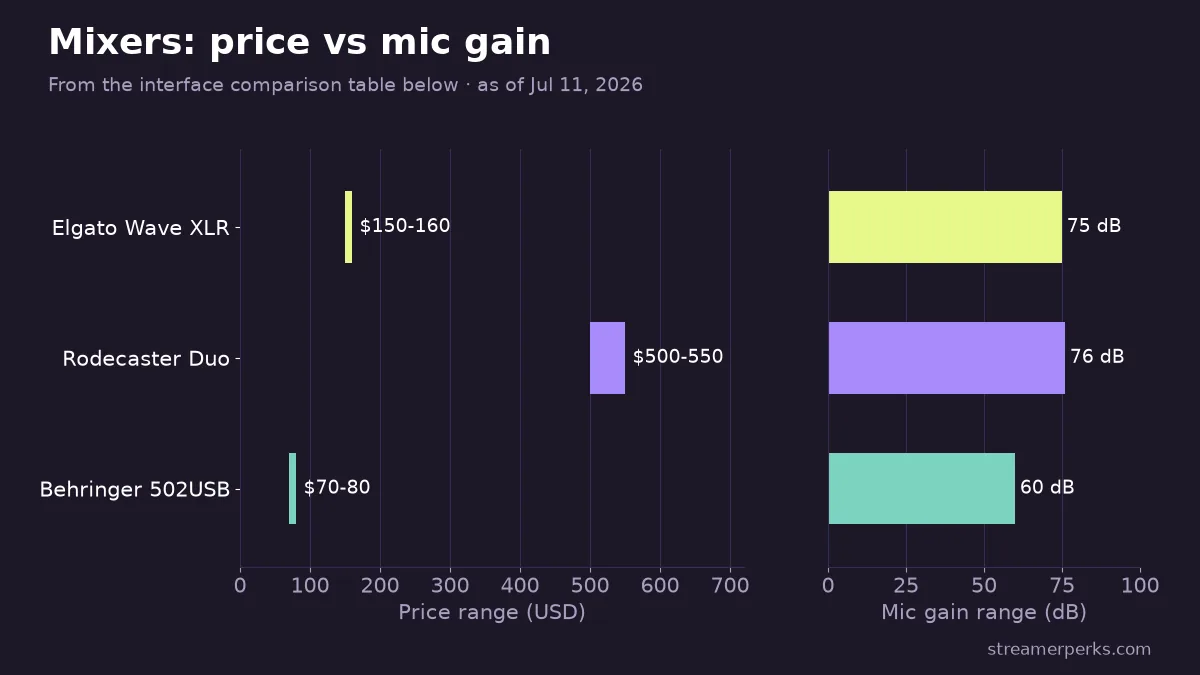
| Hardware Interface | Mic Inputs | Mic Gain Range | Built-in Effects | Dual PC Support | Software Companion | Price Range ($) | Recommended Affiliate |
|---|---|---|---|---|---|---|---|
| Elgato Wave XLR | 1 XLR | 75 dB | Clipguard (Analog limit) | No | Wave Link | $150 - $160 | Corsair / Impact Radius |
| Rodecaster Duo | 2 XLR Combo | 76 dB | Aphex DSP Processing | Yes | Rode Central | $500 - $550 | Sweetwater / Amazon |
| Behringer 502USB | 1 XLR / 4 Line | 60 dB | Analogue EQ Control | No | None (Hardware native) | $70 - $80 | Thomann / Amazon |
How do you set up an XLR mixer for streaming?
Step 1: Connect your XLR microphone safely
- Turn the gain knob on your interface all the way down before plugging anything in, so you don't get a loud pop through your speakers.
- Plug a good shielded XLR cable into the base of your microphone and the other end into the input on your interface or mixer.
- For a condenser mic, press the phantom power button (labeled "48V"). For a dynamic mic (like a Shure SM7B or Rode PodMic), leave 48V off.
Step 2: Establish base mic gain levels
- Talk into the mic at your normal streaming volume.
- Raise the gain slowly until your voice peaks in the yellow section of your software meter (around -12 to -10 decibels).
- Keep the signal out of the red zone (above -2 decibels). Past that point it clips and sounds harsh.
Step 3: Configure OBS routing
- Open OBS Studio, go to Settings, then the "Audio" tab.
- Disable the default mic inputs so no second mic channel feeds into your scenes.
- Under the "Mic/Auxiliary Audio" drop-down, pick your XLR interface (for example "Wave XLR" or "Rodecaster Duo").
- Click Apply, then watch the OBS audio mixer meter to confirm it moves when you speak.
How can you monetize audio interface reviews?
Host comprehensive audio reviews
Record side-by-side tests of a premium XLR setup against a cheap USB mic. Show how a hardware noise gate on your mixer cuts out keyboard clicks and PC fan noise. Put your affiliate links for the mixer and mic in the video description.
Publish custom software templates
Build EQ presets or profile files for the Rodecaster Duo or Wave Link. Offer them as downloads on your site, with clear links to the gear people need to use them.
Write clear troubleshooting articles
Write guides for specific problems, like "How to fix humming sounds in XLR setups" or "How to dual-stream with Rodecaster Duo." Creators with a broken setup search for exactly these phrases, and plenty of them will buy the fix you recommend through your affiliate links.
Related guides
- The Comprehensive 2026 VTuber Setup Guide: Best Trackers, Software, and Commissions
- The Ultimate Comparison of Custom Merch Platforms for Streamers in 2026
- Best Lighting Equipment for Streamers in 2026 (+ Top Affiliate Programs)
- Best Streaming PC Build Guide (2026): 3 Budgets + Affiliate Programs
- Stream Deck Setup Guide & Best Affiliate Programs for Streamers (2026)